

FEATURES
IPTV Smarters Pro Multi-Screen: watch up to four channels at once, and what it really takes
Two games kicking off at the same time, the news running during a big match, a race and a tennis final on the same Sunday afternoon: Multi-Screen in IPTV Smarters Pro lets you split one TV into several live channels, up to four at once. It is one of the app’s most popular features, and also one of the most misunderstood. Every tile is a separate stream, your device has to decode all of them, and your connection has to carry them together. Here is how to use Multi-Screen well, and how to size your device, network and plan for it.
⚡ KEY POINTS
- Multi-Screen splits one TV into two, three or four live channels. It is available in IPTV Smarters Pro on Android-based devices such as Fire TV and Android TV; availability can vary by version and device.
- Each tile is a separate stream: four tiles use four streams of your plan, exactly like four TVs.
- Your device must decode all the streams at once. Recent streaming boxes handle several HD tiles; older sticks are more comfortable with two.
- Your connection must carry them together: wire the device with Ethernet and choose HD rather than Full HD or 4K for the smaller tiles.
📑 Contents
- How Multi-Screen works
- Step by step: your first Multi-Screen session
- Every tile counts as a stream
- Is your device powerful enough?
- Bandwidth: what four channels need
- Audio and picture tips
- Beyond sports: other great uses
- Plan a busy weekend
- House rules for shared streams
- When Multi-Screen is not the best answer
- Pair Multi-Screen with catch-up
- Troubleshooting a frozen grid
- A sample Sunday afternoon
- Your Multi-Screen checklist
- Which plan for Multi-Screen?
- FAQ
For sports fans, Multi-Screen is the closest thing to a sports bar wall in the living room. Instead of flipping between channels and missing the key moment, you keep every game on screen and switch the sound to whichever one gets interesting. It also works for news junkies who follow several channels during big events, and for families who want the cartoons and the game on the same TV during a busy afternoon.
The feature is easy to open, but it pushes three things harder than any other part of the app: your plan, your device and your connection. Understanding those three limits is the difference between a smooth four-game afternoon and a frozen grid. This guide covers how Multi-Screen works, how to set it up, how to size everything around it, and what to do when it struggles.
How Multi-Screen works
Multi-Screen divides the TV into a grid. Each tile plays its own live channel, chosen from your channel list. Only one tile plays sound at a time: you select a tile to hear it, and the others keep playing silently.
| Layout | Typical use | Streams used |
|---|---|---|
| Two tiles | Two games, or a game and the news | 2 |
| Three tiles | One main game and two others | 3 |
| Four tiles | The full “whip-around” afternoon | 4 |
In IPTV Smarters Pro on Android-based devices, Multi-Screen appears as an option on the app’s home screen. Depending on your version and device, you pick a layout, then assign a channel to each tile from your categories. The exact screens can vary slightly between versions, but the logic stays the same.
Step by step: your first Multi-Screen session
- Open IPTV Smarters Pro and choose the Multi-Screen option on the home screen.
- Pick a layout: start with two tiles to see how your device and connection behave.
- Select the first tile and assign a channel from your categories. Prefer the HD version of the channel.
- Repeat for the other tiles, then select the tile whose sound you want to hear.
- Let it play for a few minutes before adding more tiles. If everything stays smooth, move to three or four.
A good habit: build a favorites list with the HD versions of the channels you use in Multi-Screen. Assigning channels to tiles becomes much faster than browsing full categories, especially with a remote control and four empty tiles waiting.
Every tile counts as a stream
This is the point most viewers discover the hard way. Your plan allows a certain number of simultaneous streams. Each tile opens its own stream, so four tiles count as four screens, even though they are on one TV.
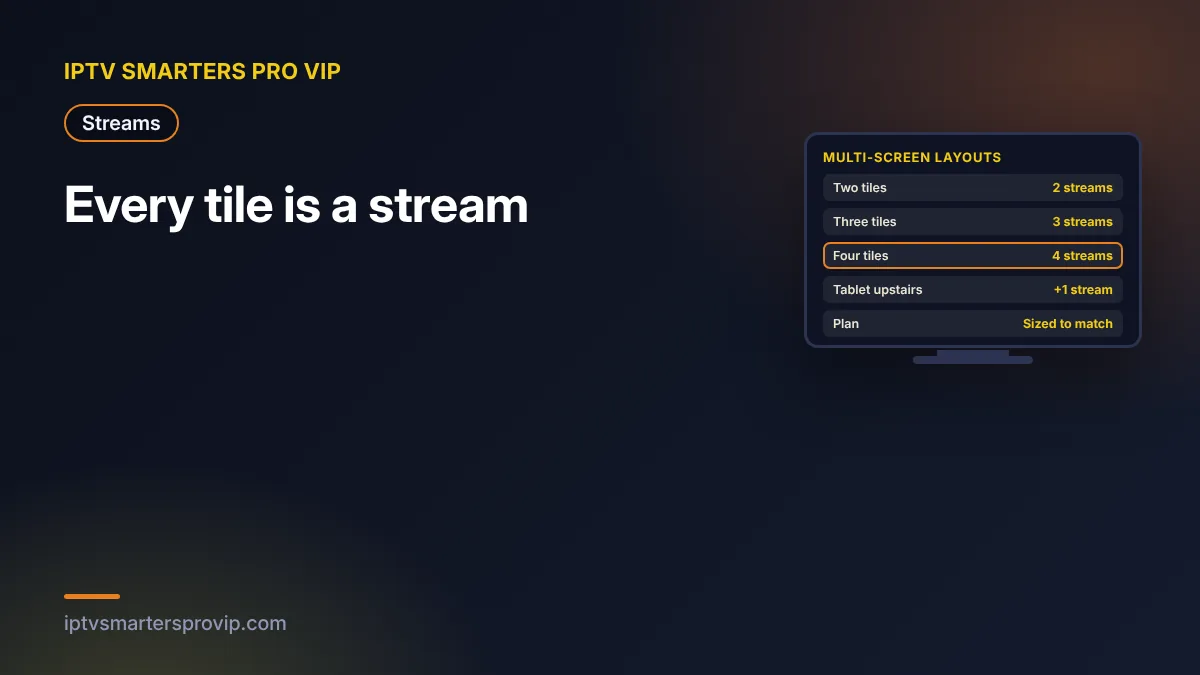
- A one-screen plan can play one channel at a time. Multi-Screen cannot open a second tile without going over the limit.
- A two-screen plan allows two tiles, or one tile on the TV and another device elsewhere in the house.
- A four-screen plan allows a full four-tile grid, but nothing else in the house at the same time.
If you open more tiles than your plan allows, one of them may stay black or stop playing. And do not forget the rest of the family: a tablet in the kitchen or a TV upstairs uses streams too. Our guide on how an IPTV Smarters Pro subscription works explains streams, screens and connections in detail.
Is your device powerful enough?
Every tile has to be decoded by the device’s processor. Two HD channels are an easy job for most recent devices; four at once is a real workout.
| Device class | What to expect |
|---|---|
| Recent high-end streaming box | Comfortable with several HD tiles |
| Recent mid-range Google TV or Fire TV device | Good with two or three HD tiles |
| Older or entry-level stick | Best kept to two tiles, in HD or SD |
| Phones and tablets | Feature availability and performance vary |
Signs that your device is at its limit: tiles that freeze in turn, sound that stutters, the remote that responds late, or the app closing. If you see them, drop to fewer tiles, or use the SD version of the channels in the smaller tiles.
Bandwidth: what four channels need
Four tiles mean four streams downloading at the same time. Even if each tile is small on screen, each one receives the full channel.
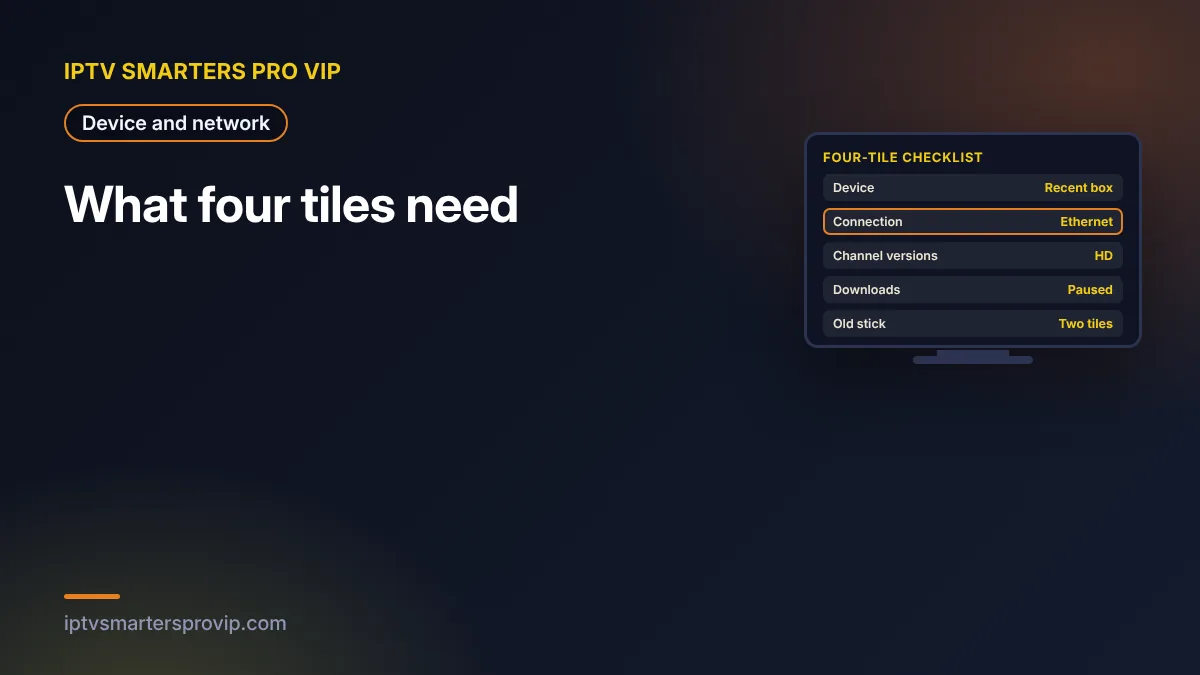
- Choose HD, not Full HD or 4K, for the tiles. A quarter of a TV screen shows no visible difference, and HD uses much less bandwidth.
- Use Ethernet on the device that runs Multi-Screen. Wi-Fi can handle one stream easily but struggle with four, especially in a busy home.
- Pause other heavy uses during the session: game downloads, cloud backups, 4K streaming elsewhere in the house.
- Restart the router before a big afternoon if it has been running for weeks.
A steady connection matters more than its top speed. Four streams expose every dip in your Wi-Fi.
Audio and picture tips
A few habits make Multi-Screen far more enjoyable:
- Put the most important game in the first tile, and keep the sound there by default.
- Switch sound with one press when another game gets interesting, then switch back.
- Turn on subtitles on news channels if your channel offers them, so you can follow without sound.
- Use a sports or standard picture mode on the TV and turn off motion smoothing if the grid looks unnatural.
Beyond sports: other great uses
Multi-Screen shines on game days, but it is useful in many other situations:
- Election nights and breaking news. Follow two or three news channels side by side and switch the sound to whichever has the latest results.
- Severe weather. Keep a local news channel in one tile during a storm while the rest of the family watches something else in the main tile.
- Multilingual households. Watch the same event on channels in two languages and let each person pick the sound.
- Big ceremonies and award shows. Keep the red carpet in a small tile while you finish a game in the main one.
- Kids and parents together. On a rainy afternoon, cartoons in one tile and the game in another can save a family argument, with headphones on the kids’ side if your setup allows it.
In every case, the same rules apply: each tile is a stream, and the device and connection must keep up.
Plan a busy weekend
On weekends with many games, a little planning helps you decide when to use Multi-Screen and when one channel is enough:
| Time slot | What is on | Best setup |
|---|---|---|
| Early afternoon | Two games at once | Two tiles, sound on your team |
| Mid-afternoon | One game, news updates | One full screen, news on a phone |
| Late afternoon | Four games at once | Four tiles in HD, nothing else running |
| Evening | The big game | One full screen in Full HD |
Moving between layouts during the day is quick, and it keeps the device and the network comfortable: four tiles only when it is worth it.
House rules for shared streams
Multi-Screen can quietly use every stream of your plan. In a shared household, a few simple rules avoid frustration:
- Agree on the busy times. If four tiles are planned for Sunday afternoon, the rest of the family knows the plan’s streams are taken.
- Close tiles you no longer watch. A forgotten tile keeps using a stream that someone upstairs may need.
- Leave one stream free when possible, for a child’s tablet or a second TV.
- Upgrade if it happens every week. If Multi-Screen regularly blocks others, a plan with one or two more screens costs less than the arguments.
When Multi-Screen is not the best answer
Sometimes two screens beat four tiles:
- A TV and a tablet side by side give each game more room and spread the decoding over two devices.
- Two TVs in different rooms keep the family happy when only one person wants the second game.
- Catch-up, when the channel offers it, lets you go back to a game you missed instead of watching it in a small tile.
If you watch on an Apple TV, check what your version of the app offers; our guide to IPTV Smarters Pro on Apple TV covers the Apple TV app in detail.
Pair Multi-Screen with catch-up
Even with four tiles, you will sometimes miss the moment: a goal in a silent tile, a key play while you were in the kitchen. When a channel offers catch-up, IPTV Smarters Pro lets you go back in the guide and play what already aired. A good routine: keep Multi-Screen for following the action live, and use catch-up afterwards, in full screen, to rewatch the moments that mattered. It is also the answer when your plan or device cannot handle one more tile: watch two live, and catch up on the third later. Catch-up depends on the channel: look for the catch-up section of the app or the archive marker in the guide. For films and episodes, our movies and series guide covers the on-demand side of the app, from search to resume.
Troubleshooting a frozen grid
| Symptom | Likely cause | Fix |
|---|---|---|
| One tile stays black | Plan limit reached | Close a tile or a stream on another device |
| Tiles freeze one after another | Device at its limit | Fewer tiles, HD or SD versions |
| All tiles buffer together | Network congestion | Ethernet, pause downloads, restart the router |
| Sound stutters | Device overloaded | Fewer tiles, restart the app |
| Multi-Screen option missing | Version or device | Update the app, check your device type |
When in doubt, start again with two tiles and add one at a time. It is the fastest way to find your setup’s real limit, and once you know it, you can plan every busy weekend around it.
A sample Sunday afternoon
A living room with a recent Google TV box wired with Ethernet, a four-screen plan, and a household of football fans:
- 1 p.m.: two tiles for the early games, sound on the home team.
- 1:30 p.m.: a third tile with a news channel and subtitles; everything stays smooth.
- 4 p.m.: the late games start; the grid moves to four tiles, all in HD.
- Evening: back to a single full-screen channel for the night game, with Full HD restored.
Four streams at the peak, nothing else running in the house, and no frozen tiles. The following weekend, with a guest watching on a tablet, the same household keeps Multi-Screen to three tiles, leaving one stream free for the tablet.
Your Multi-Screen checklist
- A plan with enough screens for every tile, plus any other device in use.
- A recent device for three or four tiles, an older stick limited to two.
- Ethernet on the device running Multi-Screen.
- HD versions of the channels in your Multi-Screen favorites.
- Other heavy downloads paused during the session.
Which plan for Multi-Screen?
Count the tiles you want, then add the other screens in the house that may play at the same time. For two tiles plus a tablet, a three-screen plan is right; for a full four-tile grid with nothing else running, a four-screen plan. Our plans work with IPTV Smarters Pro on Android devices, streaming sticks, smart TVs, Apple TV and Chromebooks.
Order online, receive your payment link and your login details by WhatsApp or email, with support in English. See our pricing page for the screen options. For movies and series on the same app, our movies and series guide has every tip.
Four games, one TV, zero frozen tiles
Our plans work with IPTV Smarters Pro on Chromebooks, Android devices, Apple TV, streaming sticks and smart TVs, with multi-screen options sized for Multi-Screen sessions and the rest of the household. Order online, receive your payment link and your login details by WhatsApp or email, with support in English. See the pricing page.
FAQ
How many channels can I watch at once in IPTV Smarters Pro?
Up to four on one screen with Multi-Screen, on supported devices and versions, as long as your plan allows that many streams.
Does each tile count as a screen?
Yes. Each tile opens its own stream, so four tiles use four streams of your plan, just like four TVs.
Why does one tile stay black?
Usually because your plan’s stream limit is reached. Close a tile, or stop a stream on another device in the house.
Which device works best for Multi-Screen?
A recent, powerful streaming box wired with Ethernet. Older or entry-level sticks are more comfortable with two tiles.
Can I use Multi-Screen on a phone or tablet?
Availability and performance vary with the device and the app version. On phones and tablets, two tiles are usually the practical maximum, and the screen is small; Multi-Screen is most enjoyable on a TV.
Should I use 4K channels in Multi-Screen?
No. On a quarter of the screen, HD looks the same and uses far less bandwidth and processing power.